
Dreami writes with whatever AI you pick. You can change it any time in Settings > AI text provider.
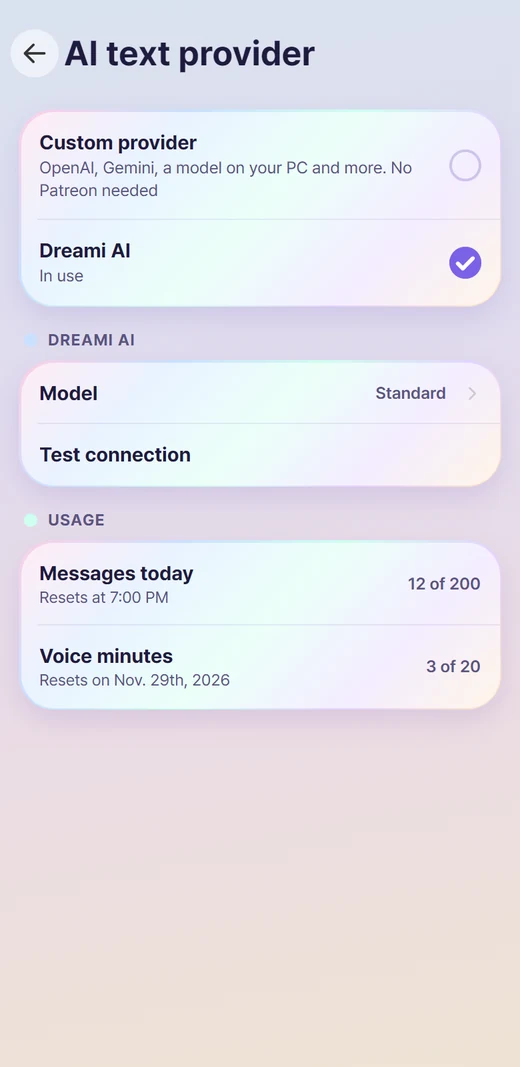
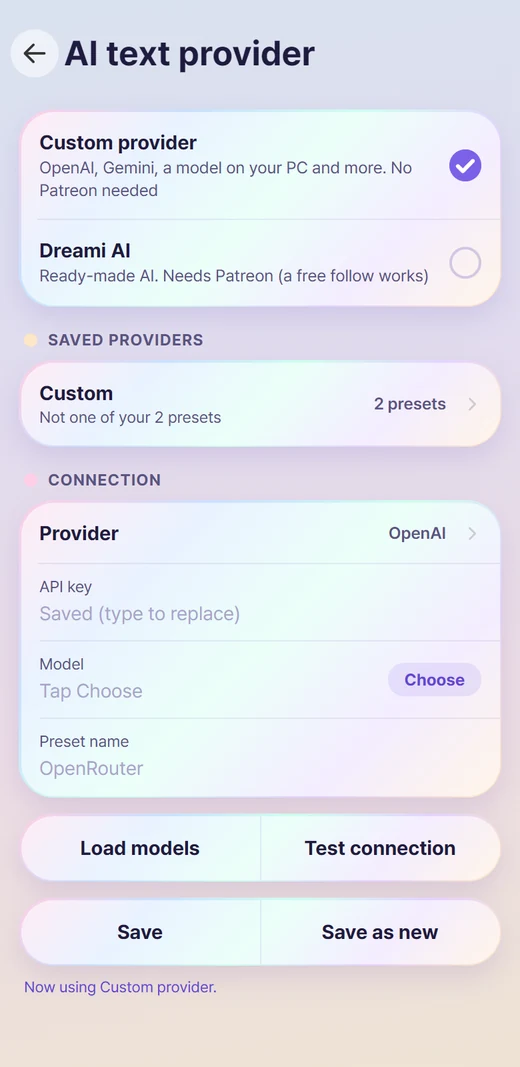
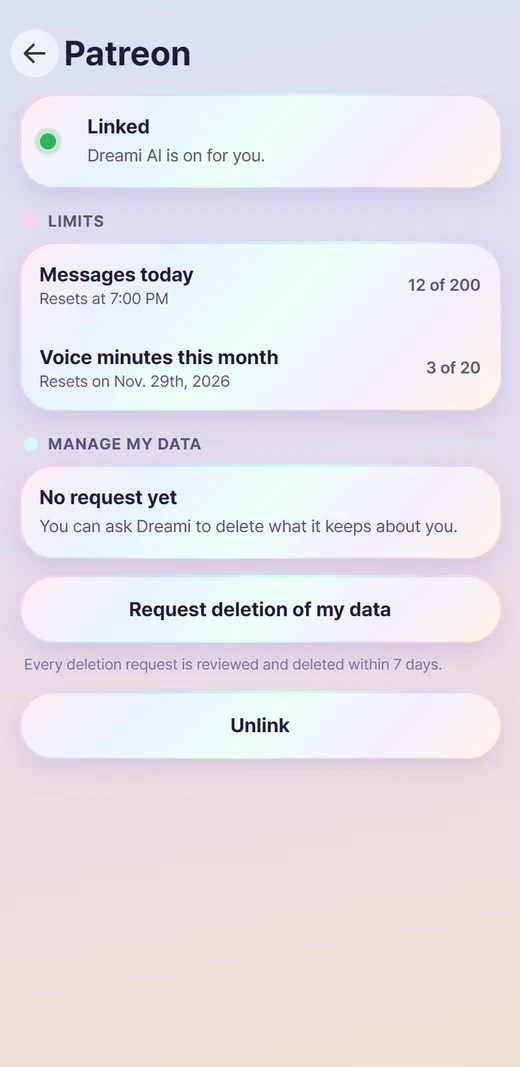
There are two ways to give Dreami an AI, and you only need one. Patreon is only for Dreami AI. If you use your own provider, you never need Patreon. How you switch on Dreami AI depends on where you downloaded Dreami. Downloaded from CurseForge: its Settings has a different Dreami AI page, which takes a key from your dashboard on daydreami.fyi. Downloaded anywhere else: you link Patreon in Settings > Patreon. Both end in the same Dreami AI, with the same limits and tiers.
Downloaded from CurseForge#
If you downloaded Dreami from CurseForge, its Settings has a different Dreami AI page. It takes a Dreami AI key from your dashboard, and there is no Patreon sign-in inside that download.
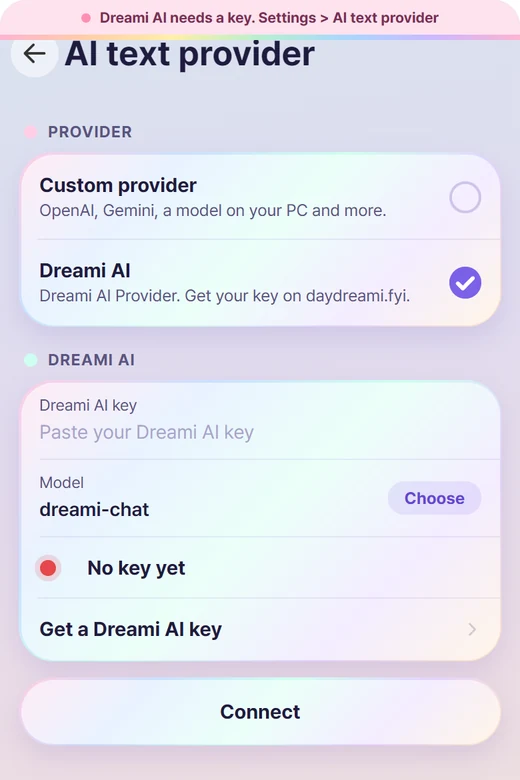
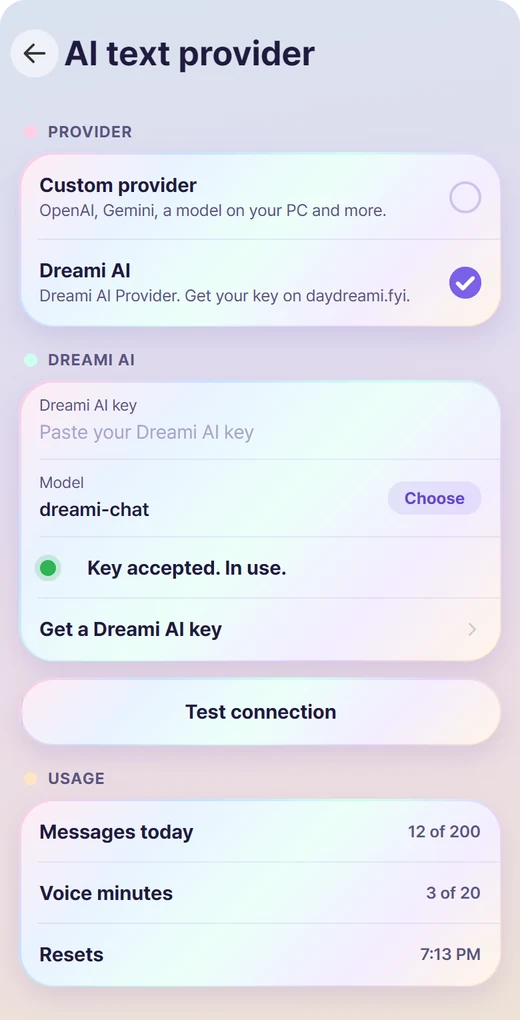
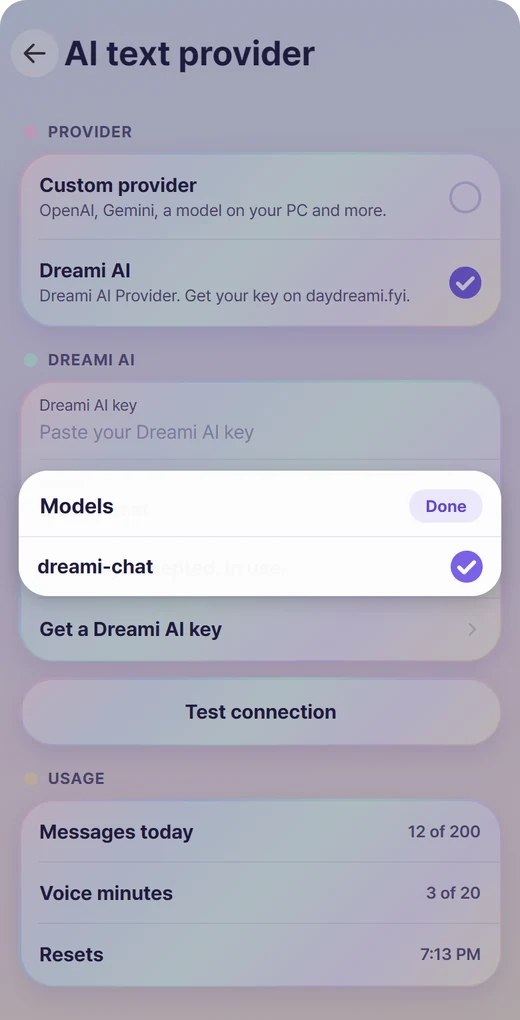
The limits and tiers are the same as with Patreon. Get a Dreami AI key on the card says where to make one, and the Android app takes the key from the game by itself.
Downloaded anywhere else#
Every other download of Dreami links Dreami AI through Patreon: ready-made AI on Dreami's own servers, nothing to install and no API keys. It takes about two minutes.
The waitlist#
There is no separate waitlist to sign up for. When free spots are all taken, linking puts you in line by itself: Settings > Patreon shows On the waitlist and your place. You don't need to link again. Open Dreami now and then to keep your place, and Dreami AI switches on by itself when a spot opens. In the meantime you can use your own provider.
If linking doesn't work#
- No active membership found: the Patreon account you signed in with hasn't joined Dreami's page. Join for free (step 1), then tap Try again.
- The sign-in page says the code expired: links last a few minutes. Tap Connect Patreon again for a new one.
- Can't copy the link or scan the code? Tap Can't scan or copy? under the QR code for other ways.
- Still stuck? Your limits, your link and an Unlink button are all in Settings > Patreon. Unlink and link again starts fresh; your chats and memories stay.
Choosing the Frontier model#
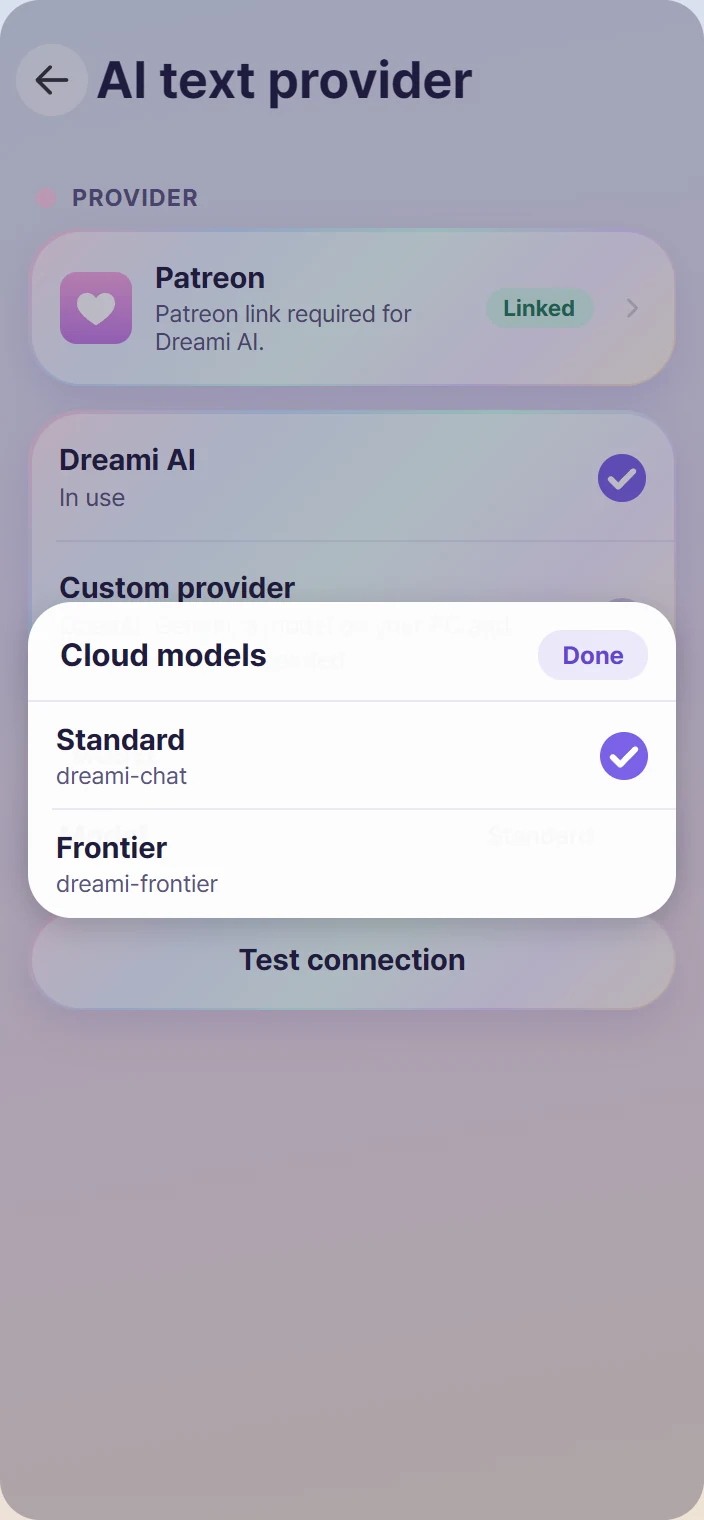
A key on the Frontier tier can use two models. On Settings > AI text provider, with Dreami AI chosen, the Dreami AI card has a Model field with a Choose button. The list comes with your key: Standard (dreami-chat) for everyone, and Frontier (dreami-frontier) only when your tier includes it. Pick Frontier and save; your chats and calls use it from then on, with the longer 32k context.
If Frontier is not in the list, the key is not on the Frontier tier yet. After changing tiers, a new key is not needed: open the Choose list again and it is there.
Your own provider, step by step#
Use any AI service you already have, or a model running on your own PC. No Patreon needed.
Examples#
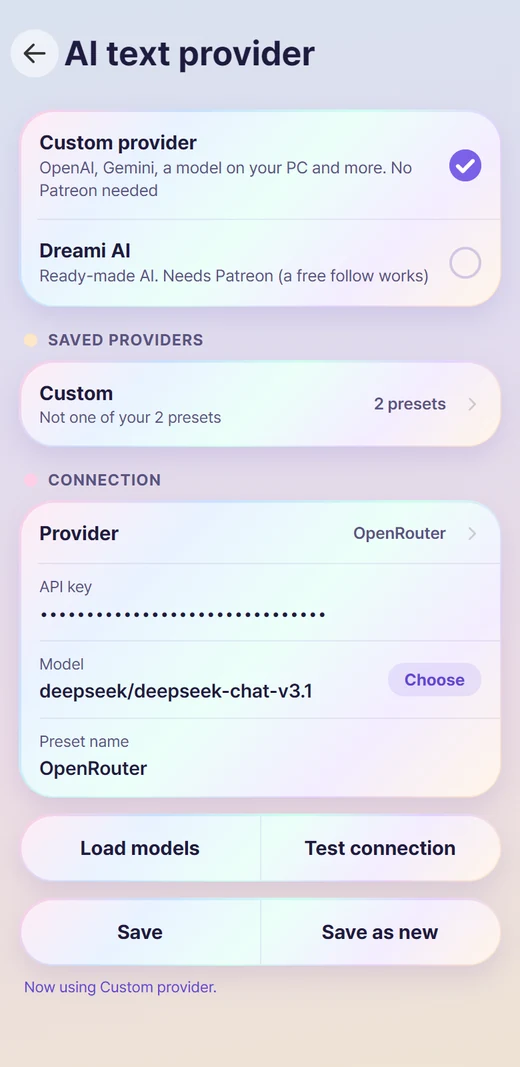
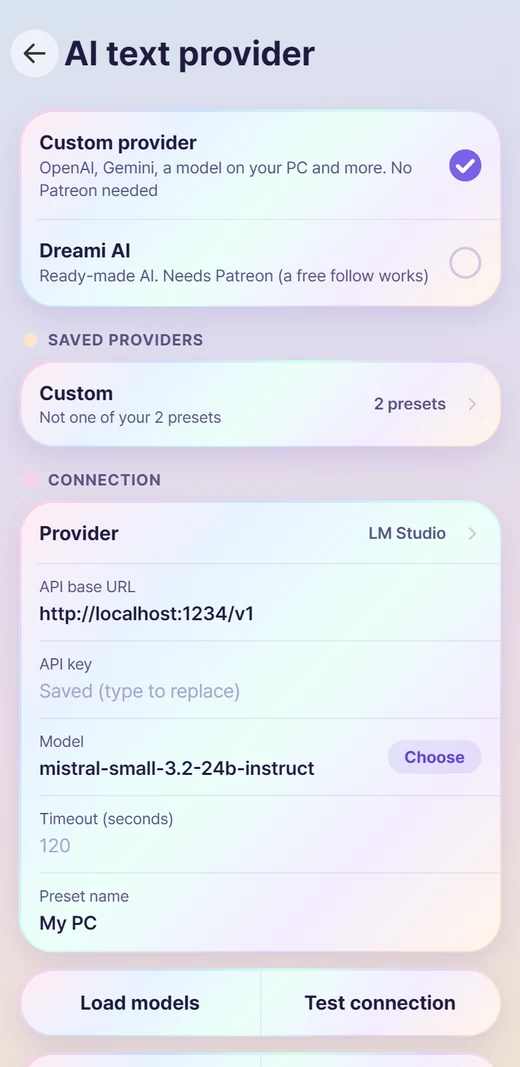
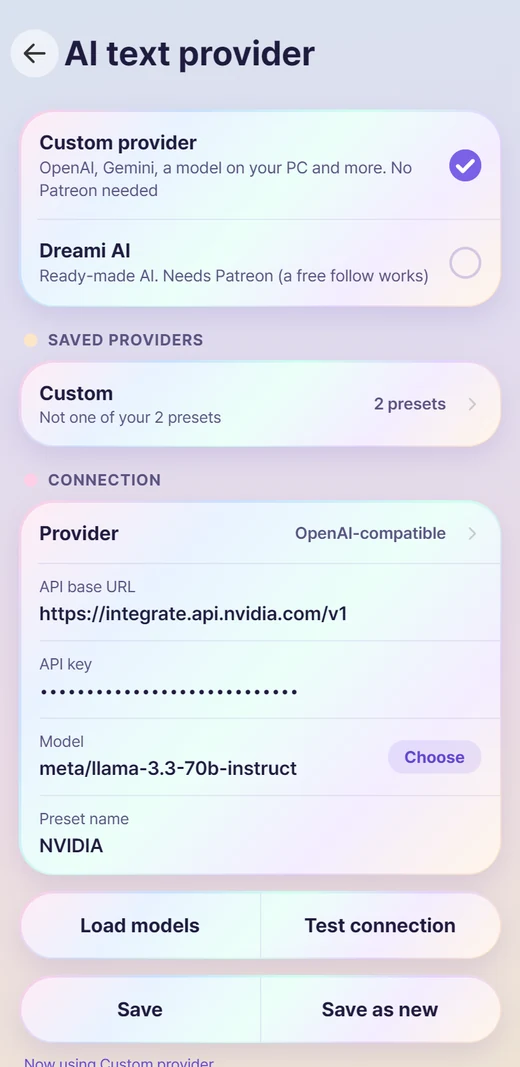
- OpenRouter: Provider OpenRouter · API key from openrouter.ai · Model: tap Choose and pick one.
- LM Studio on your PC: start LM Studio and load a model · Provider LM Studio · no key · Model: tap Choose.
- NVIDIA: Provider Other > OpenAI-compatible · API base URL
https://integrate.api.nvidia.com/v1· API key from build.nvidia.com · Model: tap Choose.
The API base URL#
Only needed for OpenAI-compatible and self-hosted services. Copy the address from your service's docs. Dreami reads it like this:
- Just the site, like
https://api.example.com: Dreami adds /v1/chat/completions. - Ending in a version, like
https://api.example.com/v1,.../v2or.../v1beta/openai: Dreami keeps that version and adds /chat/completions. - The full chat address, like
https://api.example.com/v4/chat/completions: Dreami uses it exactly as typed.
So if your service uses /v1, you can type the address with or without it. If it uses another version, include it. Some examples, as you'd type them:
- NVIDIA:
https://integrate.api.nvidia.com/v1(a /v1 address) - Zhipu GLM:
https://open.bigmodel.cn/api/paas/v4(a /v4 address: keep the version) - Google Gemini, OpenAI-style:
https://generativelanguage.googleapis.com/v1beta/openai(keep /v1beta/openai) - Perplexity:
https://api.perplexity.ai/chat/completions(it has no version, so type the full chat address) - A model on your PC with LM Studio:
http://localhost:1234
Save or Save as new. Save updates the preset you're on (type a new Preset name to rename it). Save as new keeps that one as it was and adds another, so you can switch between them later. Leave Preset name empty and the address is used as the name. Your key stays on your PC, encrypted.
If the test fails#
- Your AI provider did not accept the key: the key is wrong, expired, or has no credit left. Make a new key on the provider's site and paste it again.
- The model name may not be one it offers (HTTP 400): pick the model with Choose instead of typing it.
- The provider does not know this address or model (HTTP 404): check the API base URL and the model name.
- Your account has no credit left, or billing isn't set up: add credit or a payment method on the provider's site. Dreami says "no credit" for this, also with OpenAI. A ChatGPT subscription doesn't include API credit; the API is paid separately.
- Too many requests right now (HTTP 429): wait a moment, or check your plan's limits on the provider's site.
- Could not reach or took too long: check your internet connection. For a model on your own PC, make sure it's running and a model is loaded. Its first answer can be slow while the model loads: raise Timeout (seconds) on the form (it shows for Ollama, LM Studio, KoboldCpp and other models on your PC), then test again.
Thinking models (the kind that think before they answer, like the o-series, GPT-5 and newer, recent Gemini models or DeepSeek R1) work too. Dreami asks for the least thinking and leaves room for it, so replies aren't cut off.
Presets#
Save a setup under a name and switch between presets in one tap.